👍 Maximize Battery Life:
Extend the battery life of your MacBook Air by adjusting energy-saving settings. Lower the screen brightness, disable unnecessary background processes, and reduce keyboard backlighting to conserve battery power. Adjust these settings in System Preferences > Energy Saver.
👍 Utilize Spotlight Search:
Take advantage of Spotlight Search to quickly find files, applications, and information on your MacBook Air. Press Command + Spacebar to open Spotlight, then start typing your search query. Spotlight can also perform calculations, conversions, and more.
👍 Organize Desktop Spaces:
Organize your workspace by using multiple desktop spaces. Swipe left or right with three or four fingers on the trackpad to switch between spaces, or use Mission Control to view all open windows and spaces. You can create and manage spaces in System Preferences > Mission Control.
👍 Customize Keyboard Shortcuts:
Streamline your workflow and perform tasks more efficiently by customizing keyboard shortcuts. Create custom shortcuts for applications, menu items, and system functions in System Preferences > Keyboard > Shortcuts.
👍 Secure Your MacBook Air:
Protect your MacBook Air and your data by setting up a strong password. Additionally, consider enabling FileVault encryption to encrypt the contents of your disk and require a password to decrypt, ensuring your data remains secure.
👍 Backup Regularly:
Since the MacBook Air A1466 (2014) may be prone to hardware failures due to its age, it’s crucial to back up your data regularly. Use Time Machine to create automatic backups to an external hard drive or set up iCloud Backup for added convenience and redundancy.
👍 Optimize Performance:
Improve the performance of your MacBook Air by closing unnecessary applications and freeing up disk space. You can also consider upgrading the RAM or replacing the hard drive with a solid-state drive (SSD) for faster performance.
👍 Explore Legacy macOS Features:
Since the MacBook Air A1466 (2014) may not support the latest macOS versions, explore the features available in the macOS version installed on your device. Familiarize yourself with applications such as iLife Suite (iPhoto, iMovie, GarageBand) and Safari for web browsing.
👍 Clean Your MacBook Air:
Keep your MacBook Air clean and free of dust and debris to prevent overheating and hardware issues. Use compressed air or a soft brush to remove dust from the keyboard, ports, and vents.
👍 Consider Upgrade Options:
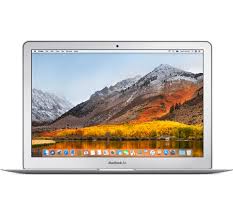
If your MacBook Air A1466 (2014) is struggling to meet your needs, consider upgrading to a newer model or investing in additional accessories such as an external display, keyboard, or mouse to improve productivity and usability.
By incorporating these tips and tricks into your usage of the MacBook Air A1466 (2014), you can optimize performance, enhance security, and prolong the lifespan of your device.

 iPhone Repair
 iPad Repair
 Mac Repair
 Apple Watch Repair