👍 Customize Touch ID:
If your MacBook Air has Touch ID, set it up to quickly unlock your device and make secure purchases with Apple Pay. You can also use Touch ID to authenticate passwords and access sensitive information. Set up Touch ID in System Preferences > Touch ID.
👍 Enable Dark Mode:
Reduce eye strain and improve focus by enabling Dark Mode, which changes the color scheme of your MacBook Air’s interface to darker tones. You can enable Dark Mode in System Preferences > General.
👍 Master Trackpad Gestures:
Familiarize yourself with the multitouch gestures available on the trackpad, such as swiping between full-screen apps, pinch-to-zoom, and using Mission Control to manage multiple desktops. You can customize these gestures in System Preferences > Trackpad.
👍 Optimize Battery Life:
Maximize battery life by adjusting energy-saving settings and optimizing your usage habits. You can adjust settings such as display brightness, keyboard backlighting, and background processes in System Preferences > Energy Saver.
👍 Utilize iCloud:
Seamlessly sync your files, photos, and documents across all your Apple devices using iCloud. Enable iCloud Drive in System Preferences > Apple ID > iCloud to access your files from anywhere and ensure they are always up to date.
👍 Secure Your MacBook Air:
Protect your MacBook Air and your data by enabling FileVault encryption and setting up a strong password. FileVault encrypts the contents of your disk and requires a password to decrypt, ensuring your data remains secure. Enable FileVault in System Preferences > Security & Privacy > FileVault.
👍 Backup Regularly:
Protect your data by regularly backing up your MacBook Air. Use Time Machine to create automatic backups to an external hard drive or set up iCloud Backup for added convenience and redundancy.
👍 Explore Continuity Features:
Take advantage of Continuity features such as Handoff, Universal Clipboard, and AirDrop to seamlessly transition between your MacBook Air and other Apple devices. Ensure Bluetooth and Wi-Fi are enabled, and sign in to the same iCloud account on all devices to use these features.
👍 Stay Updated with macOS Updates:
Keep your MacBook Air up to date with the latest macOS updates for optimal performance, compatibility, and security. Regularly check for updates in System Preferences > Software Update and install any available updates.
👍 Use Siri:
Utilize Siri to perform tasks, answer questions, and find information on your MacBook Air. You can activate Siri by clicking on the Siri icon in the menu bar or by pressing and holding the Command key and Spacebar.
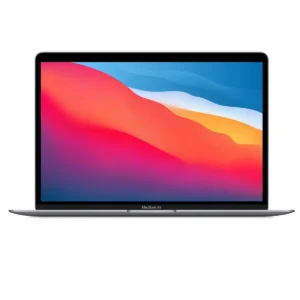
By incorporating these tips and tricks into your usage of the MacBook Air 2020 (A2179), you can enhance your productivity, efficiency, and overall user experience with this sleek and powerful device.

 iPhone Repair
 iPad Repair
 Mac Repair
 Apple Watch Repair